Run Your First Site Scan
Use an optzi! site scan to find scripts and begin your review.
Last updated 3 months ago
Run Your First Site Scan
Run a static discovery scan to make an initial list of third-party scripts and iframes that appear in your site's HTML. Then review that list before you decide what should be consent-gated.
Important: A scan is an inventory step, not a compliance decision and not a publish step. It does not make new rules live by itself.
Before You Start
Be an account owner. Owners can start scans and approve, ignore, or categorize findings; members can view the resulting list but cannot make those changes.
Make sure your site's homepage is publicly reachable. The scan fetches it like a visitor would; it cannot sign in or pass through a password-protected page.
Have a private or incognito browser window available for later testing.
Write down the tools you expect to find, such as your analytics provider, form tool, chat widget, scheduler, video host, advertising platform, and tag manager.
What the Scan Checks
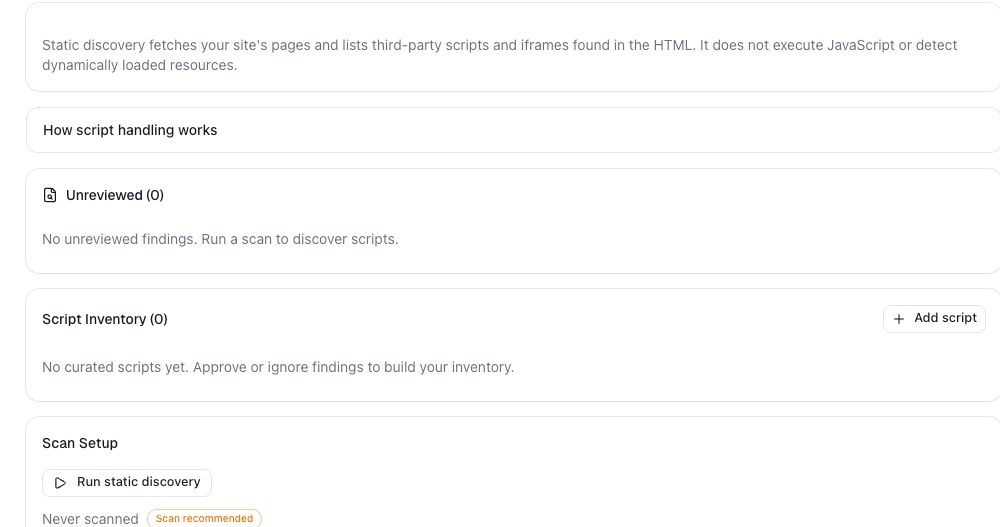
The Run static discovery action fetches your homepage and reads the returned HTML. It looks for third-party script and iframe references in that markup.
It does not open a browser, click buttons, sign in, or execute JavaScript. That means it can identify a script tag that is already present in the page source, but it cannot fully map every resource a tool creates later.
For example:
A Google Tag Manager container can be present in the HTML, while the tags inside the container are requested only after GTM runs.
A chat or scheduling widget may load only after a visitor clicks its button.
A vendor's first script can load additional JavaScript files, images, or iframes after it starts.
An inline bootstrap can add a new
<script>element after the page loads. The static scan sees the bootstrap in the page source, but not necessarily the new vendor request it creates.
That limitation is expected. optzi! also uses the installed widget to flag third-party scripts it sees loading at runtime. Those findings appear in the same Unreviewed list with a Seen at runtime label. Read Review Scripts Seen at Runtime after this article for the exact follow-up process.
Run the Scan
In optzi!, open the site you want to review.
Select Scripts.
In Scan Setup, select Run static discovery.
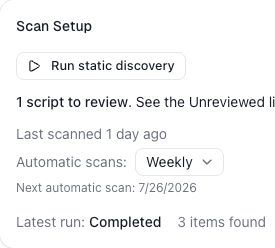
Wait for the latest run to change from Queued or Running to Completed.
Review the number of items found and the Unreviewed list above the scan controls.
If you receive a message that a scan is already in progress, wait for that run to finish. optzi! also applies a short cooldown after a completed or failed scan, so wait for the time shown before trying again.
If the homepage cannot be reached, the scan fails rather than returning a partial homepage result. Confirm that the domain is correct, the site is live, and the homepage is not blocking normal public requests; then try again.
Read the First Results
Each item in Unreviewed is a finding, not yet a final rule. Start with items you recognize, then work through the unknown ones.
For every finding, check:
The vendor or host named in the item.
The URL or code evidence, when available.
The feature on your site that would use that vendor.
Any category suggestion and its confidence level.
optzi! may show a recognized-service or AI suggestion. Treat it as research help—not an instruction. The scan's classification work happens after discovery, and a suggestion can appear shortly after a scan completes. A low-confidence or unidentified result means you should investigate the vendor before choosing a category.
Do not choose a category just because a name sounds familiar. For example, GTM is a delivery mechanism: the container and the tags it loads can have different purposes. A chat tool may be Functional, but its optional analytics or advertising add-ons can behave differently. See Categorize Scripts in optzi! for a step-by-step review method.
What Happens When You Approve a Finding
Running the scan does not add a live rule. Reviewing a finding can change your rule configuration:
When you approve a finding and choose a category, optzi! creates or reuses a Script Inventory entry for that exact discovered fingerprint.
For an approved, categorized item with a fingerprint, optzi! creates the matching exact consent rule automatically. Necessary is always allowed; the other consent categories are blocked until the visitor grants that category.
If multiple findings on the same site have the same fingerprint, optzi! links them together so you do not need to review each duplicate separately.
Ignoring a finding records that curation decision but does not create a consent-blocking rule.
Important: An approved category change is still not live until you publish the current rule set and complete the required Deploy changes or Deploy to activate action. The installed widget receives rules from the deployed configuration, not merely from a saved inventory row.
This is also why Add Script in Script Inventory is not a substitute for an Advanced Rule. A manually added row is useful documentation, but without scanner-backed fingerprint evidence it does not create a matching block rule. Use Create an Advanced Rule when you need to match a vendor URL or path directly.
When a Scan Does Not Show a Tool You Use
First, verify whether the tool is absent from the initial page HTML or merely shown as a runtime finding.
It Loads Through a Tag Manager
The static scan can find the GTM container if it is in your HTML, but it does not execute the container and inspect every tag it launches. Review the container and test important pages with consent denied and granted. Use the dedicated Use Google Tag Manager with optzi! guide before deciding how to manage GTM and its downstream tags.
It Loads After a Click or Other Visitor Action
A booking widget, chat launcher, video player, or embedded form can wait until a visitor interacts with it. Open that feature on the live site after optzi! is installed. If the widget observes a third-party script loading, it adds a Seen at runtime finding for review. If no finding appears, inspect the vendor implementation and browser network activity before you create a rule.
It Loads More Files After Its First Script
Some vendors use a small root script that fetches changing chunks or creates iframes from the vendor's own domain. An exact fingerprint rule for the root script may not cover those child requests. In that case, create the narrowest stable Advanced Rule for the vendor host or path, choose the correct category, and set it to Block until consent.
The Featurebase Messenger marketing-site implementation is a tested example: its root script is gated as a Functional static script, and its runtime files require an Advanced Rule for *://do.featurebase.app/* set to Functional + Block until consent. That is an example of one vendor's behavior—not a category recommendation for every third-party service.
It Is Injected by Another Script
An inline bootstrap or another vendor can create a script element dynamically. Static discovery does not execute that code. Let the installed widget observe it in use, investigate the host, then either approve the exact observed item or add a narrow Advanced Rule when a host/path pattern is the reliable match.
How to Verify the Scan Is Useful
Before moving on, confirm that:
The latest run says Completed.
The expected obvious tools in your homepage HTML appear in Unreviewed or Script Inventory.
You understand which important tools may only load at runtime.
You have not treated an AI suggestion as a final category decision.
You have not assumed a scan, an inventory row, or a saved rule is already live on the website.
Your next task is to review and categorize the findings, publish any resulting rule changes, deploy them, and test both the denied-consent and granted-consent paths.
Related Articles
Legal note: This article explains how to use optzi! and is not legal advice. Your obligations may vary by jurisdiction and implementation. Consult qualified legal counsel for advice about your situation.
Was this helpful?
Still need help? Ask the team